Portfolio
HODL - PORTFOLIO Introduction HODL is a digital asset manager that gives you a 360° view of your crypto holdings, complete with profitability tracking, trend analysis, and more. HODL is the default screen when launching the Moonrig dApp:
- If you are signed in and/or
- You use this module often
If you are signed in and already have coins in your portfolio, you will see screens similar to this (you can scroll to see additional details) When you open the Moonrig dApp, this is the default home page you’ll see. Here, you can view your portfolio information at a glance, including:
- Coins you hold
- Total value
- Profit/loss
- Market trends
This page is your central dashboard to manage and track your crypto holdings in real-time. 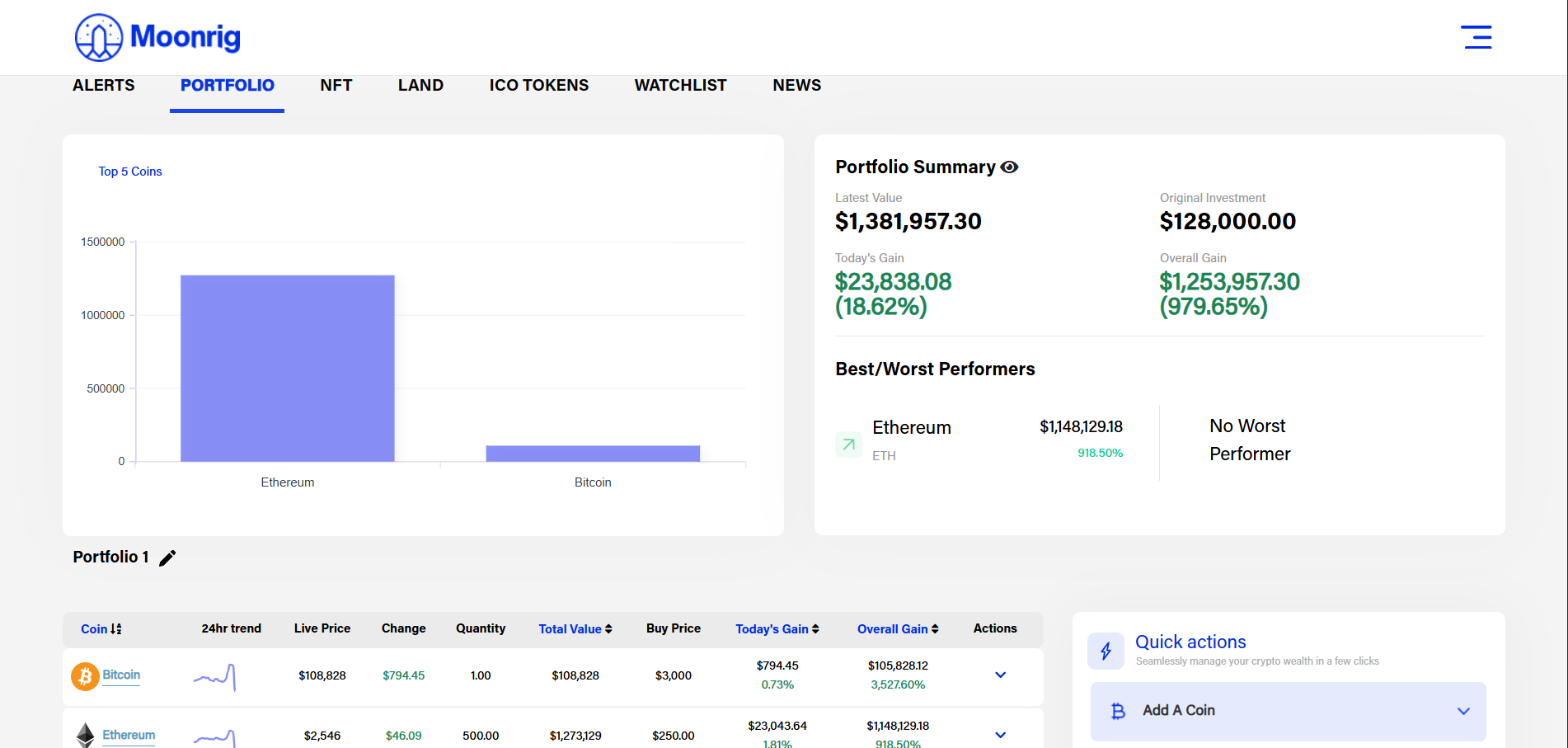 In the portfolio table, you can see the following information:
- Coin – Name and icon of the cryptocurrency you hold
- 24hr Trend – Small graph showing price movement in the last 24 hours
- Live Price – The current market price of the coin
- Change – How much the price has increased or decreased in the last 24 hours
- Quantity – Number of coins you own
- Total Value – Current total worth of your holdings in that coin
- Buy Price – The average price you paid per coin
- Today’s Gain – Profit or loss made today in value and %
- Overall Gain – Total profit or loss since you bought the coin
- Actions – Options like add, sell, edit, delete, set alerts, view news, and transactions
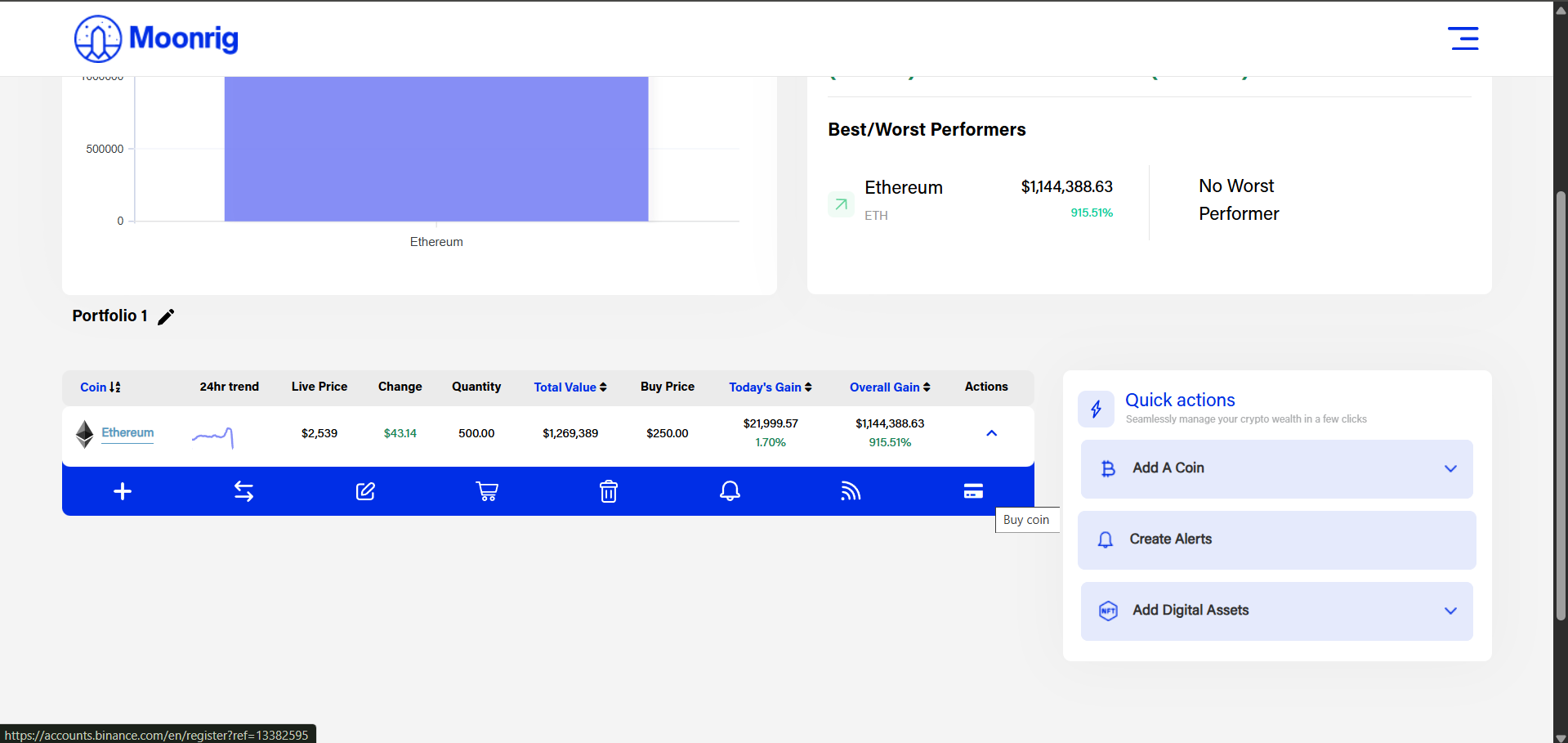
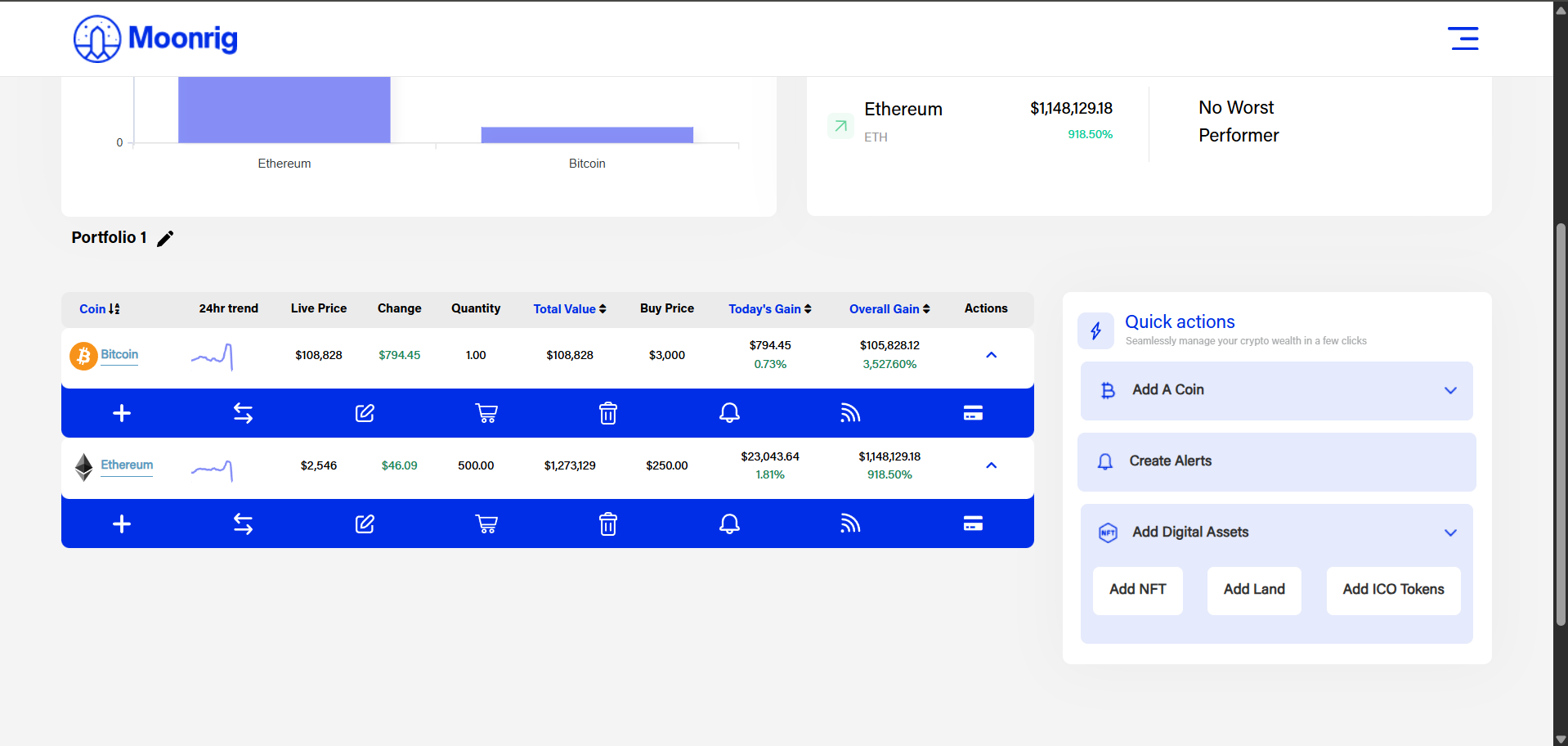
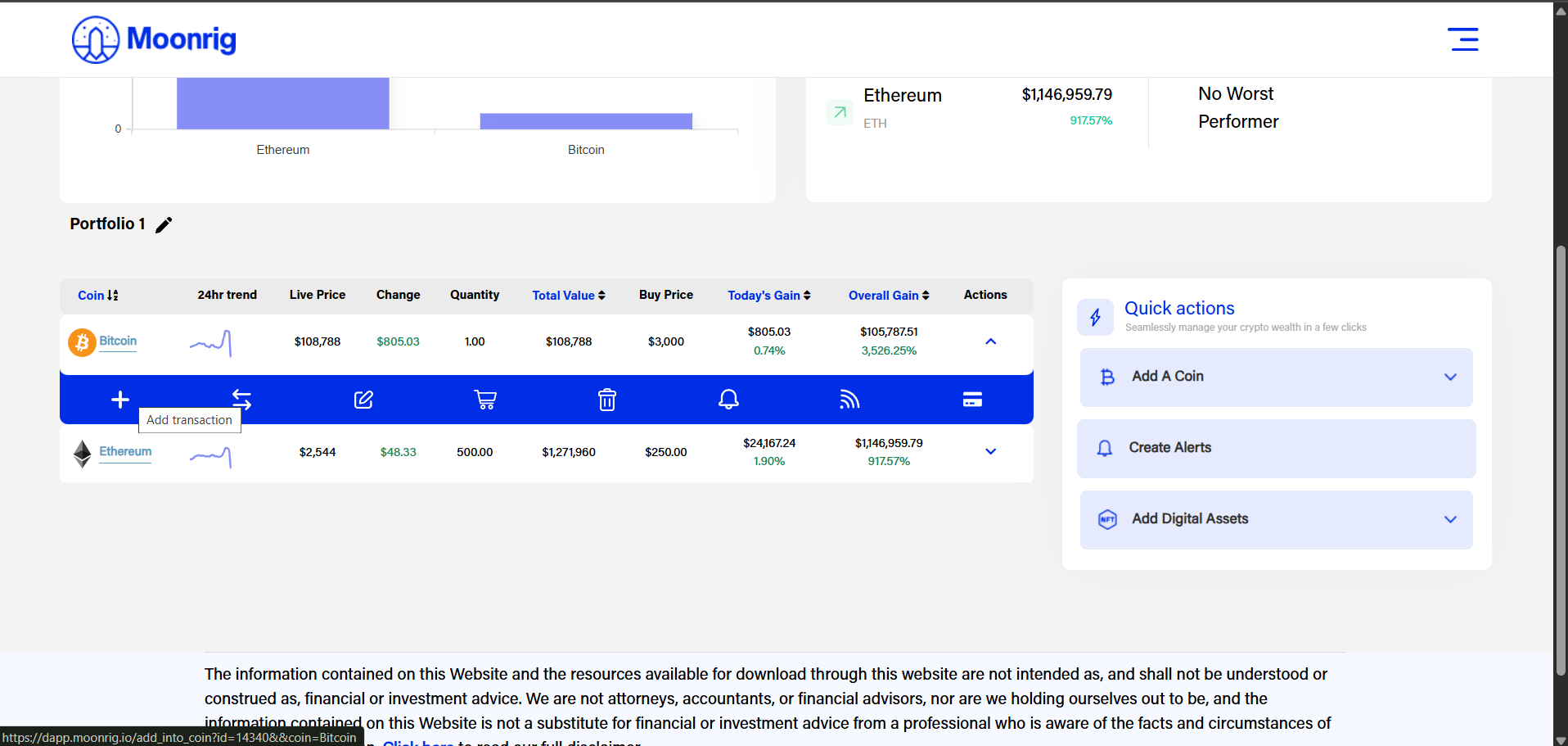
If you tap on Action Buttons dropdown, then you will get these options(Below Each Coin)
- Add Coin – Add more of the same coin
- Swap – Convert one coin to another
- Edit – Change the coin’s details
- Buy – Record a new purchase
- Delete – Remove the coin from your list
- Alert – Set a price alert
- News – Check news related to the coin
- Transactions – View all your buy/sell records for this coin
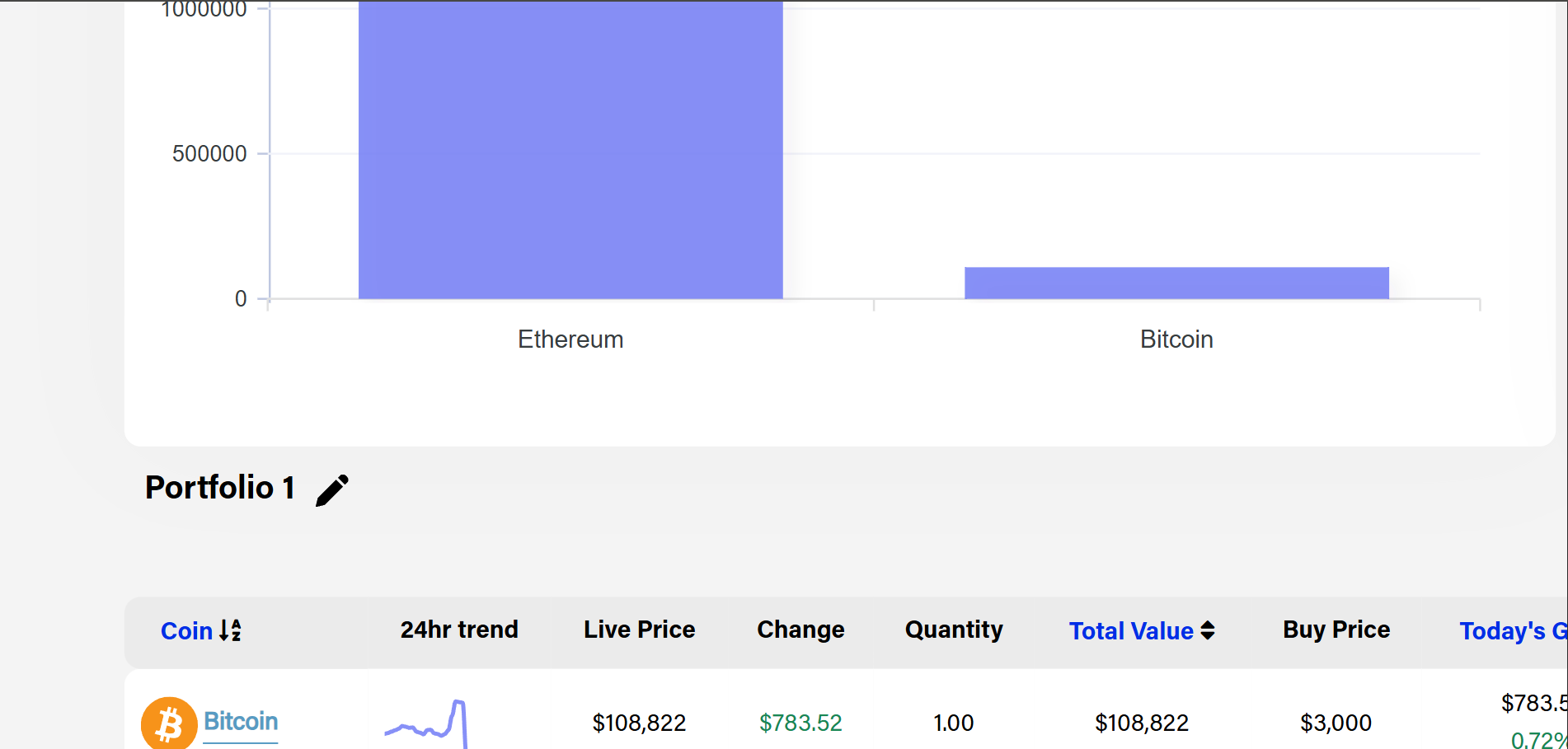
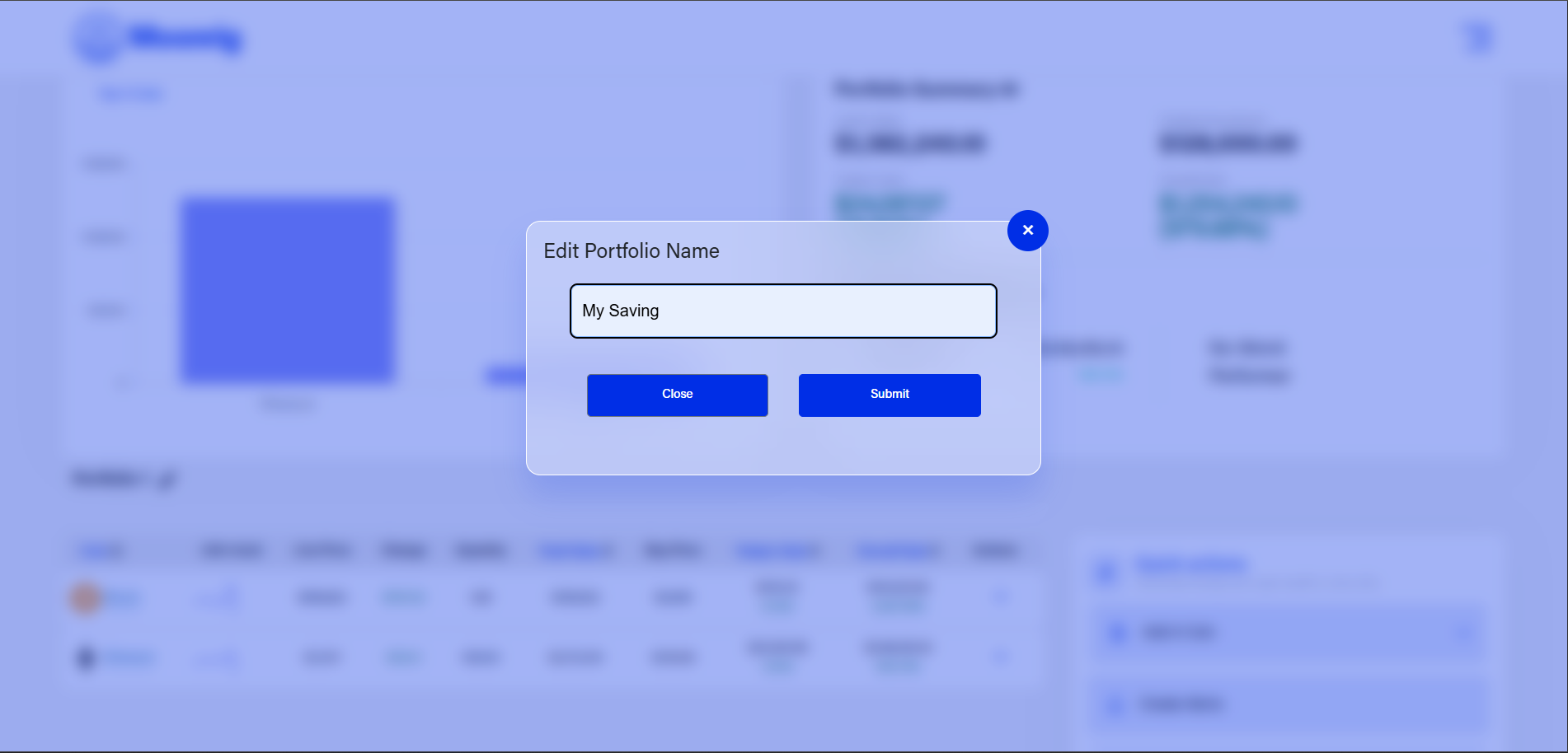
 If you want to change the name of your portfolio click on the following steps to rename your portfolio
- Click the pencil icon next to your current portfolio name.
- Type your new portfolio name in the text box.
- Click the "Submit" button to save the changes.
- Your portfolio name will be updated successfully.
 Steps to View Portfolio Value at the current time
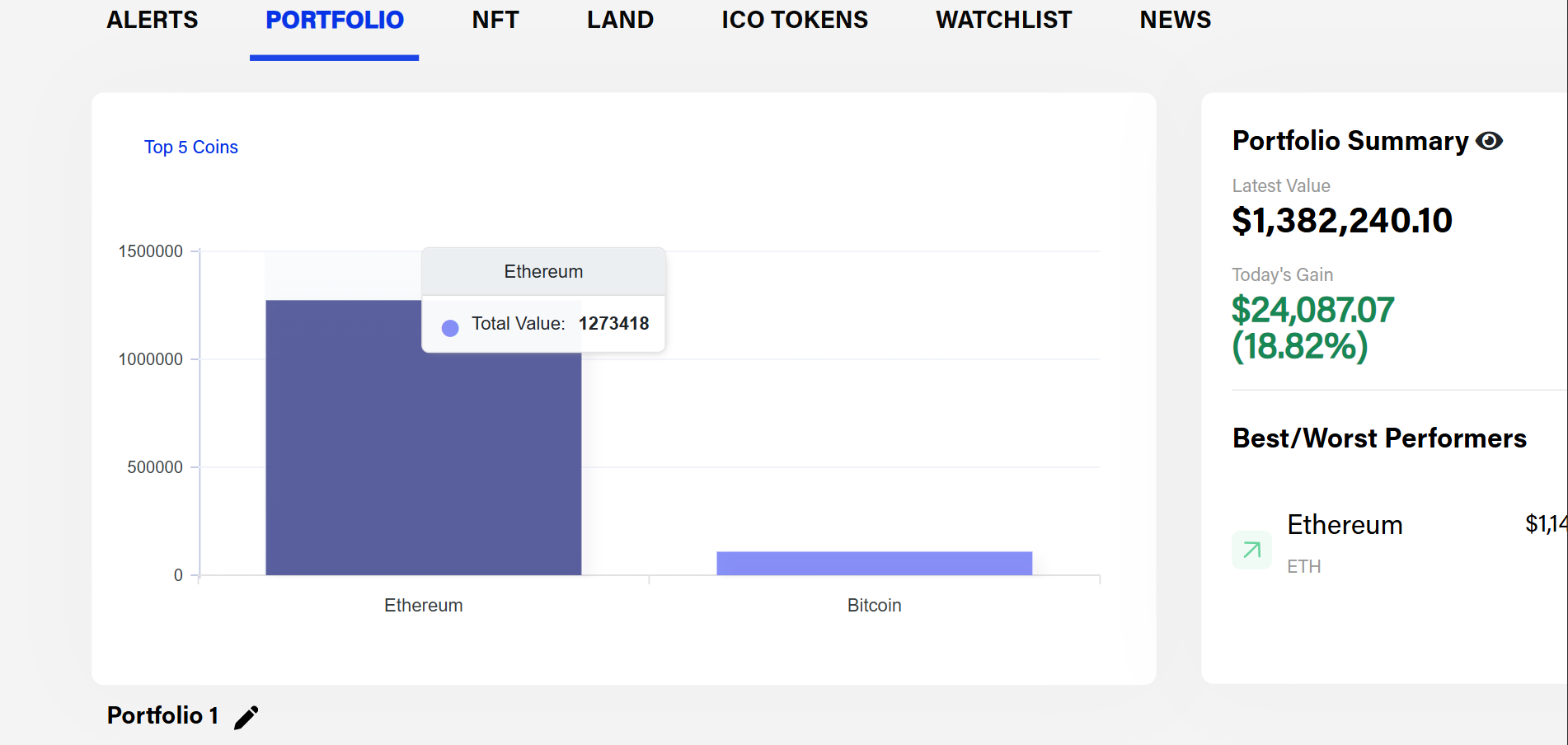
- Open the Portfolio page.
- Find the bar graph showing your portfolio trend.
- Hover your mouse over any bar on the graph.
- The graph will show the exact value of your portfolio at the time of viewing.
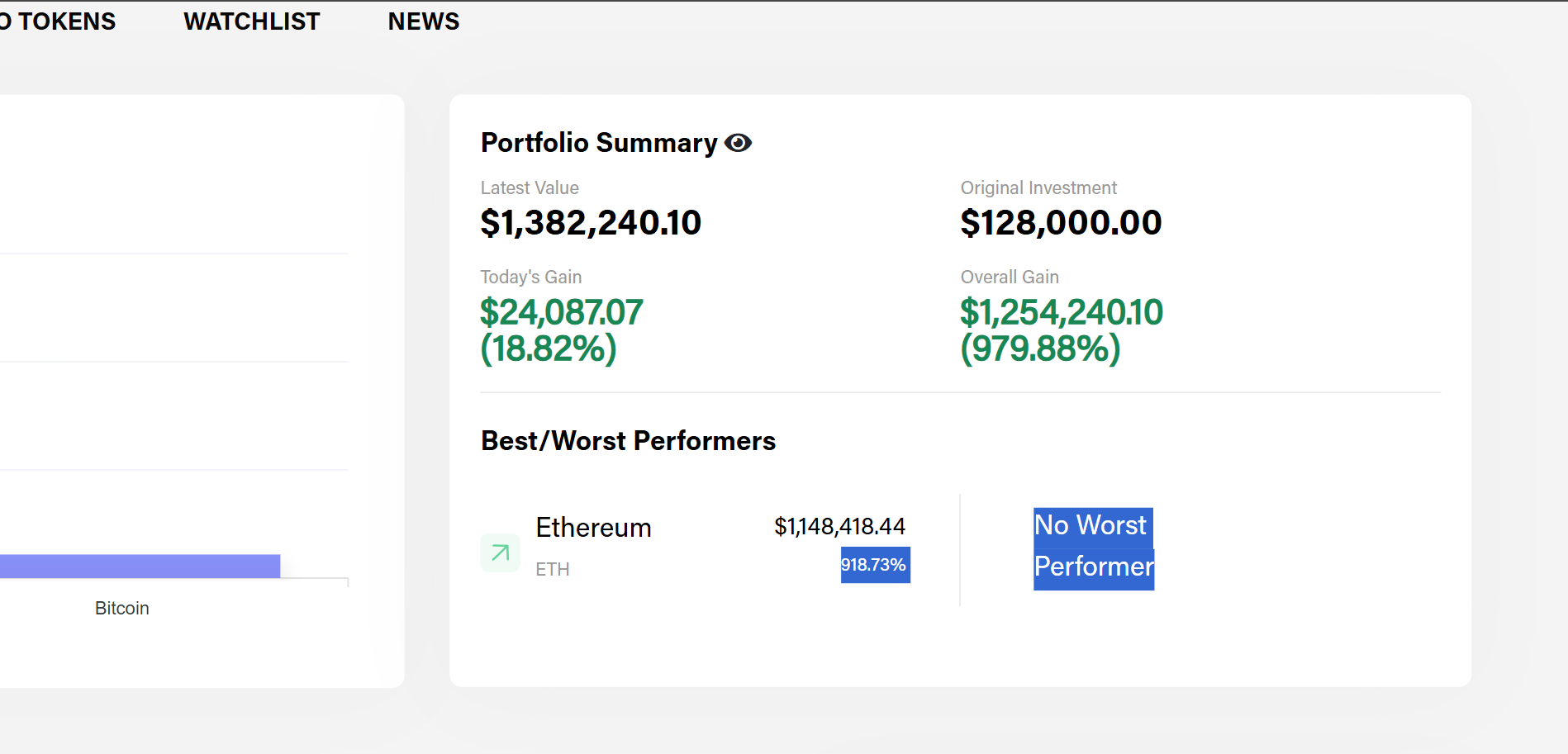
 View Portfolio Summary & Performance Details You can see important portfolio information displayed next to the bar graph. You can view:
- Portfolio Summary
- Latest Value – Current total value of your portfolio
- Original Investment – Total amount you’ve invested
- Today’s Gain – Profit or loss for the current day
- Overall Gain – Total profit or loss since the start
- Best/Worst Performers
- Shows the top performing coin in your portfolio
- If there’s any, it will also show the worst performing coin
- This helps you quickly identify what’s doing well and what’s not
 Portfolio Viewing/Sort Features 1. Portfolio Table – Column Details
- Coin – Name and icon of the cryptocurrency you hold
- 24hr Trend – Small graph showing price movement in the last 24 hours
- Live Price – The current market price of the coin
- Change – How much the price has increased or decreased in the last 24 hours
- Quantity – Number of coins you own
- Total Value – Current total worth of your holdings in that coin
- Buy Price – The average price you paid per coin
- Today’s Gain – Profit or loss made today in value and %
- Overall Gain – Total profit or loss since you bought the coin
- Actions – Options like add, sell, edit, delete, set alerts, view news, and transactions
You can sort your coin listing by the following criteria:
- Coin name
- Total Value
- Today’s Gain and
- Overall Gain
2. Action Buttons (Below Each Coin)
- Add Coin – Add more of the same coin
- Swap – Convert one coin to another
- Edit – Change the coin’s details
- Buy – Record a new purchase
- Delete – Remove the coin from your list
- Alert – Set a price alert
- News – Check news related to the coin
Transactions – View all your buy/sell records for this coin 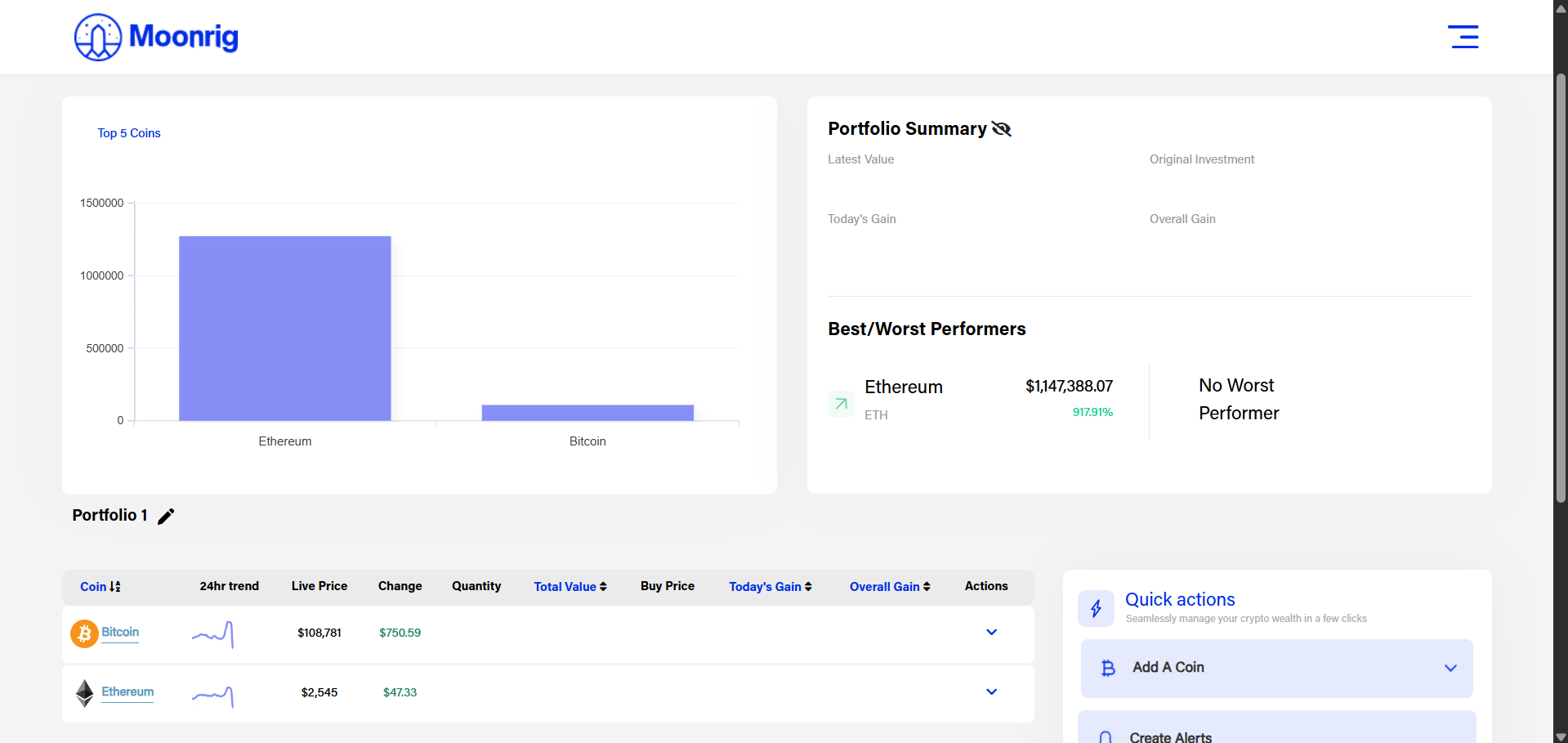 Add Transaction Use this option when you buy more of an existing coin and want to update your portfolio with the new purchase.
  Steps to Add a Coin Entry
-
- Enter how many coins you bought
- Example: 100
- This is the number of additional coins you purchased.
- Enter the price you paid per coin (in USD or USDT)
- Example: 23.65
- If you don’t remember the price, skip this and enter the purchase date (next step).
- Enter the purchase date (optional)
- Format: dd-mm-yyyy
- If the price field is empty, Moonrig will use this date to fetch historical price data.
- Select the exchange
- Choose the platform where you made the purchase (e.g., Binance, Coinbase).
- Click “Add Coin”
- The entry will be added and your portfolio will automatically update the average buy price and quantity.
- Enter how many coins you bought
This feature is useful when you’ve bought a coin at different prices over time and want to track your total investment accurately. 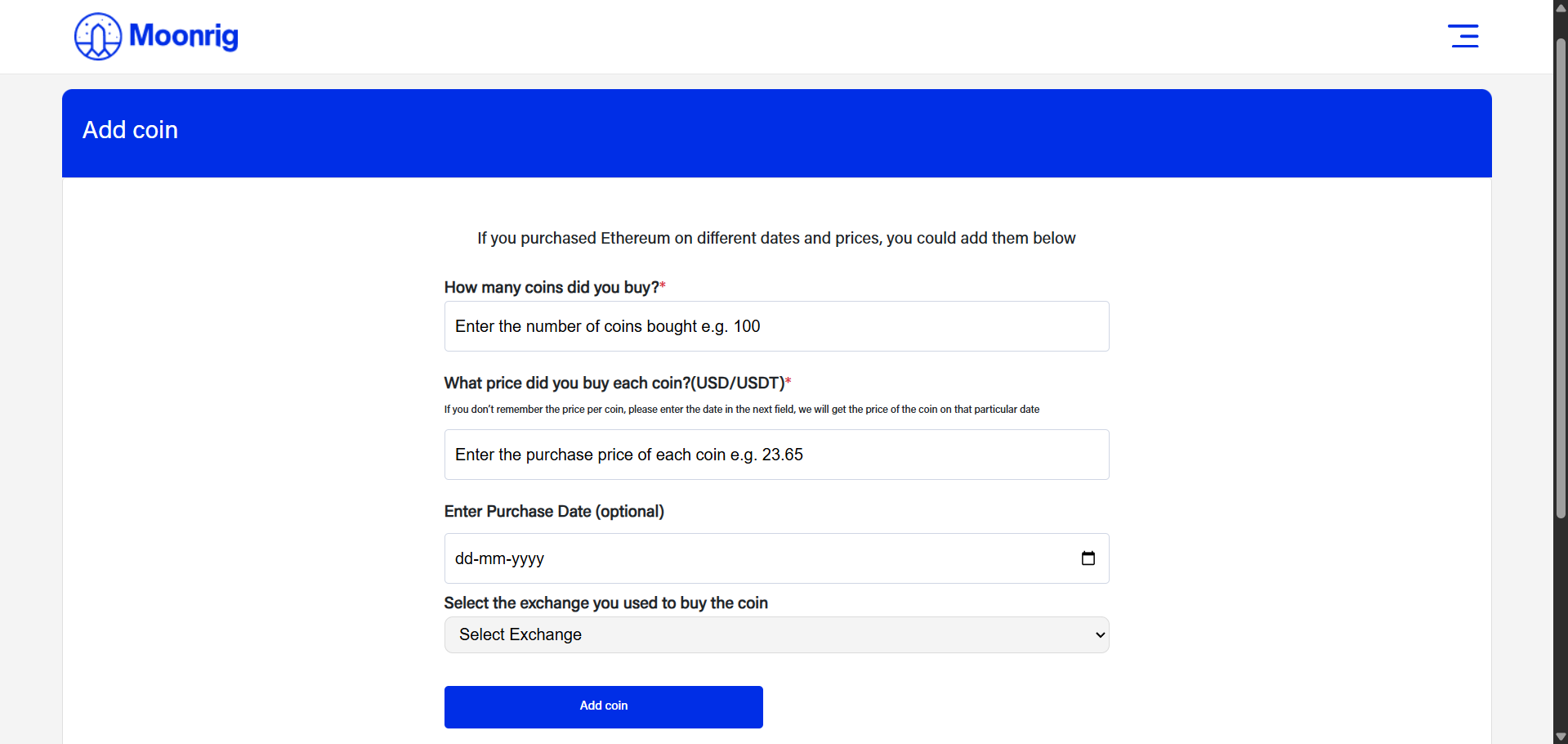 View Transaction My (Purchase/Sell) Transactions View/Modify coin purchases and sales They are listed (in rows) by independent transactions
 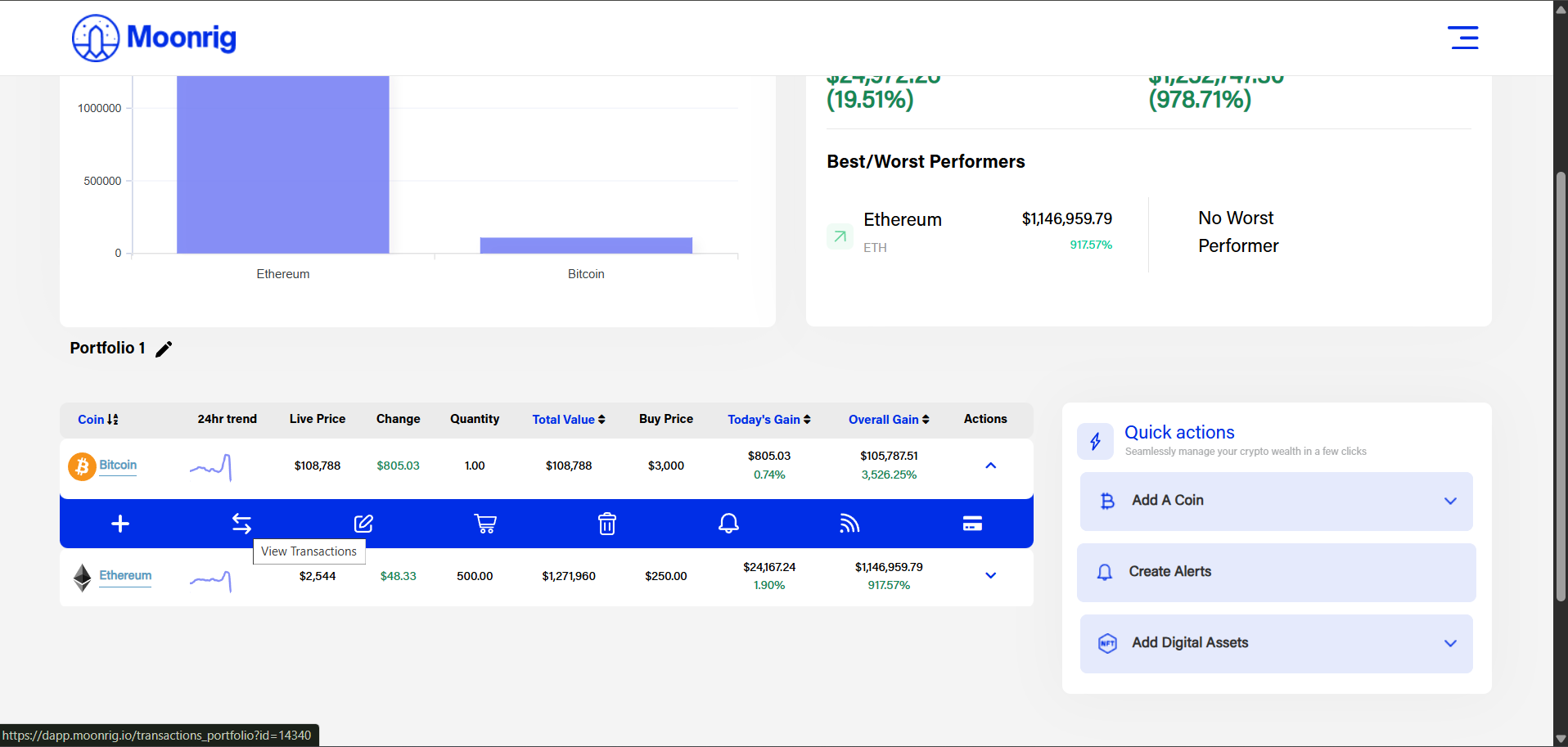 Click (anywhere) on the individual transaction, an additional row drops down to reveal the ‘Delete’ & ‘Edit’ buttons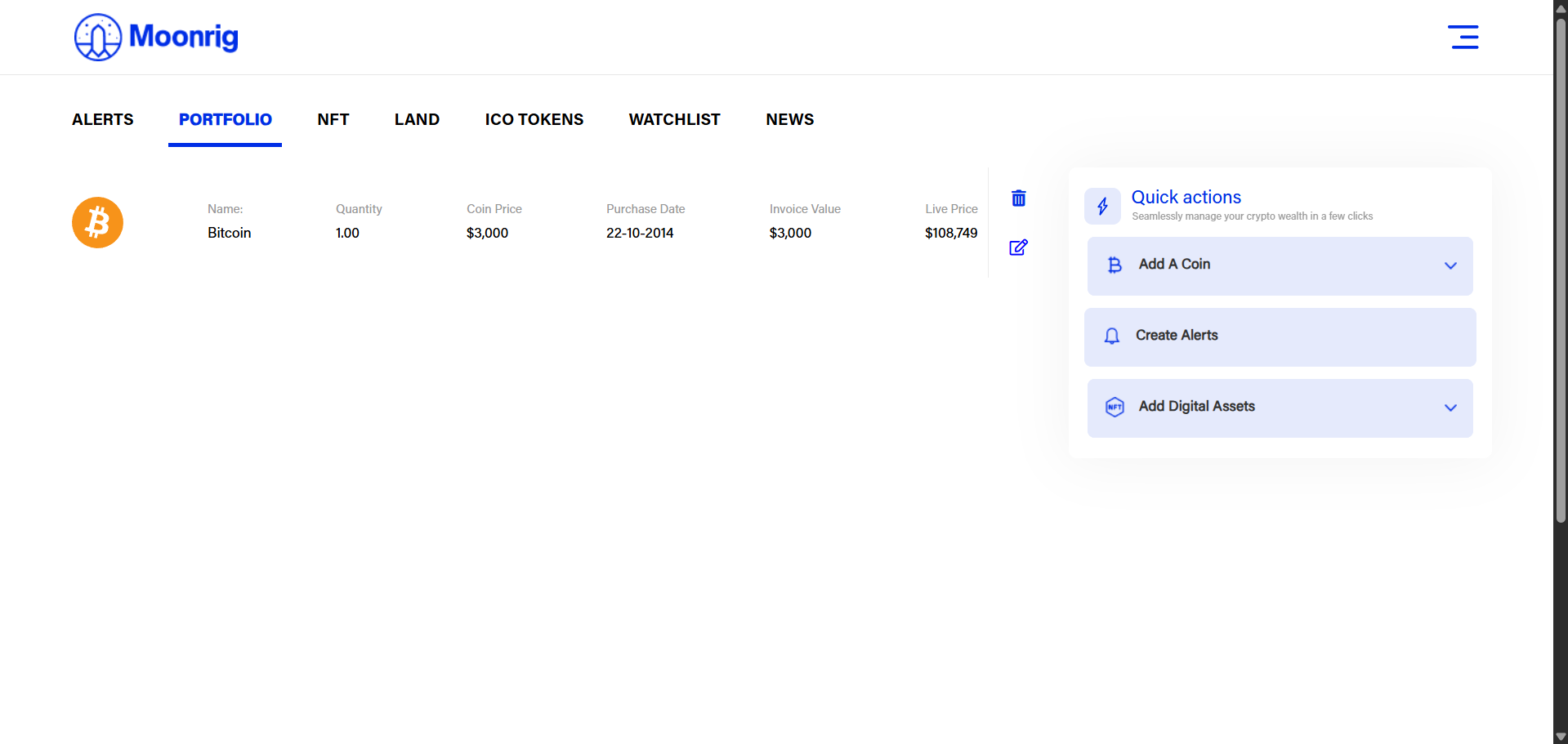
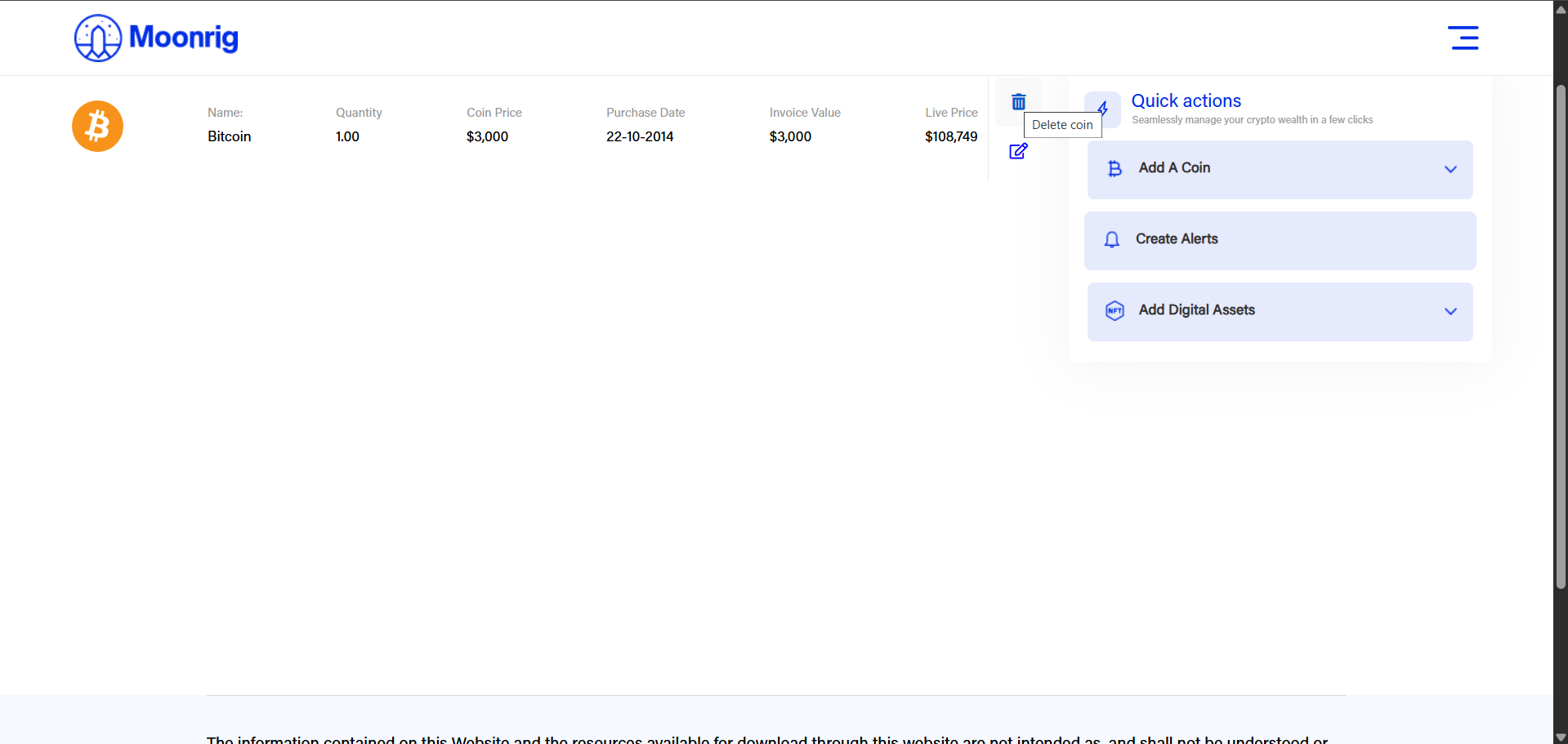 Click on the ‘Delete’ (trash can icon) button to delete the selected transaction.
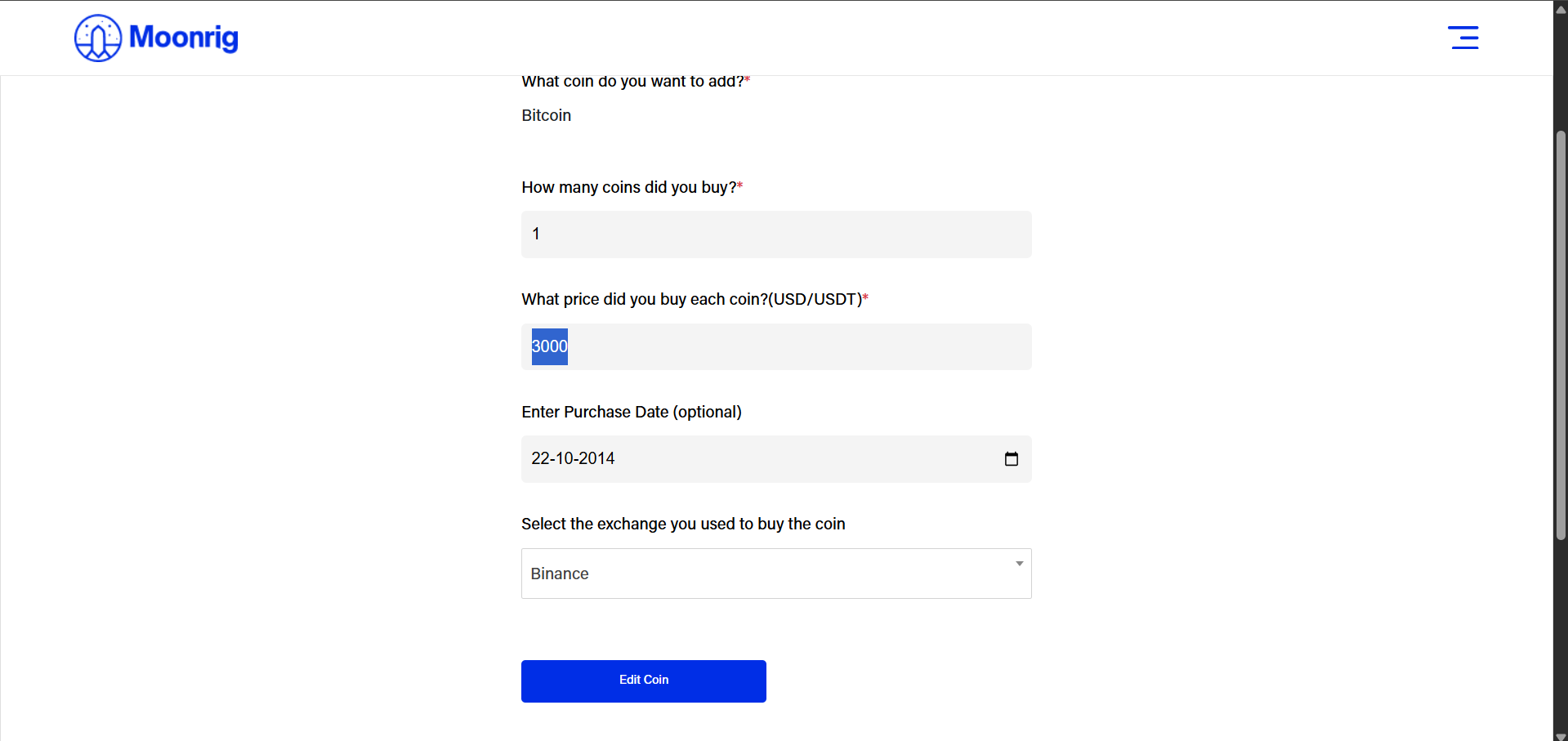
 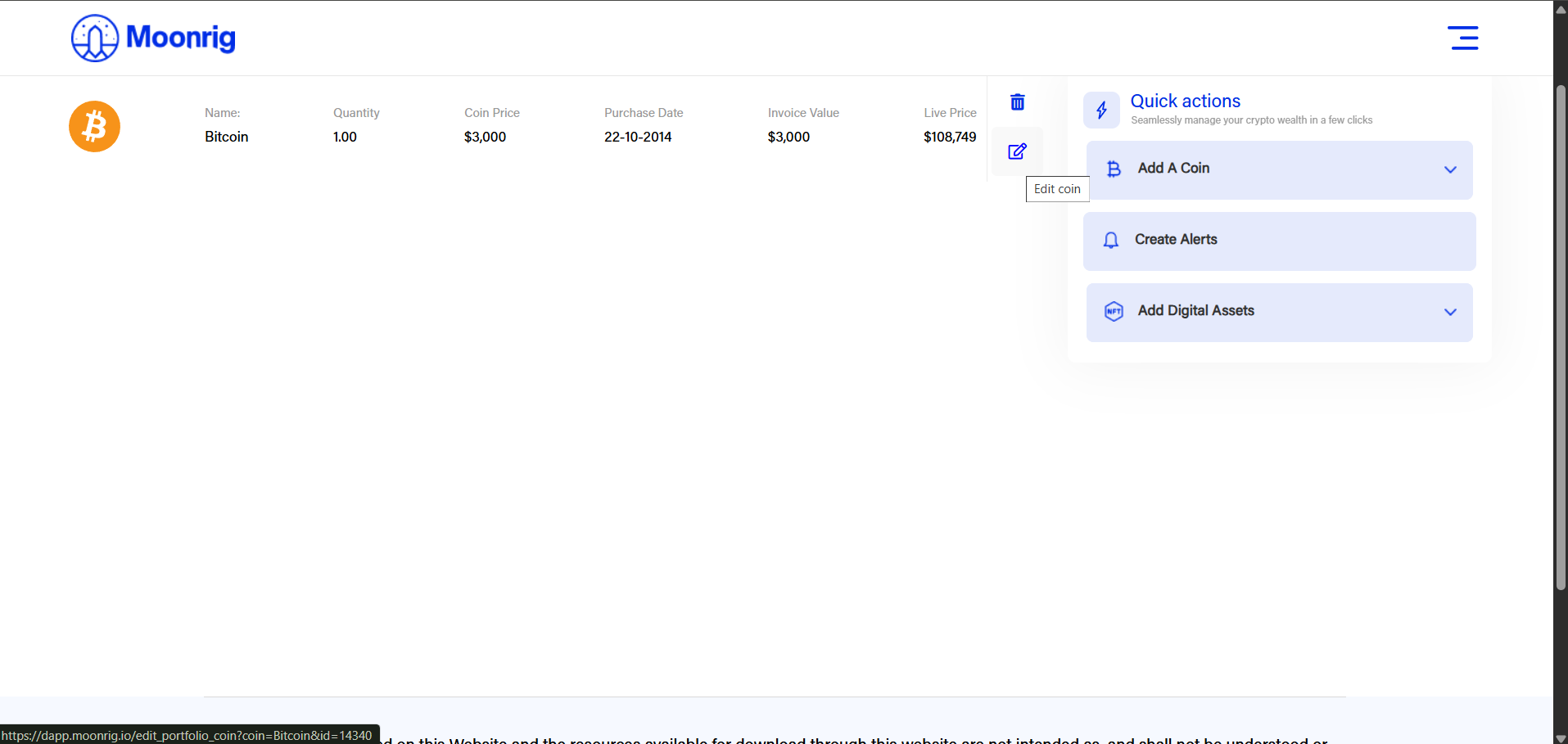 Click on the ‘Edit’ (page with a pen icon) button to edit the selected transaction. Edit (Selected) Coin If you wish to edit a listing (if the original coin listing details were incorrect) of a selected coin purchased earlier, click on this icon.
 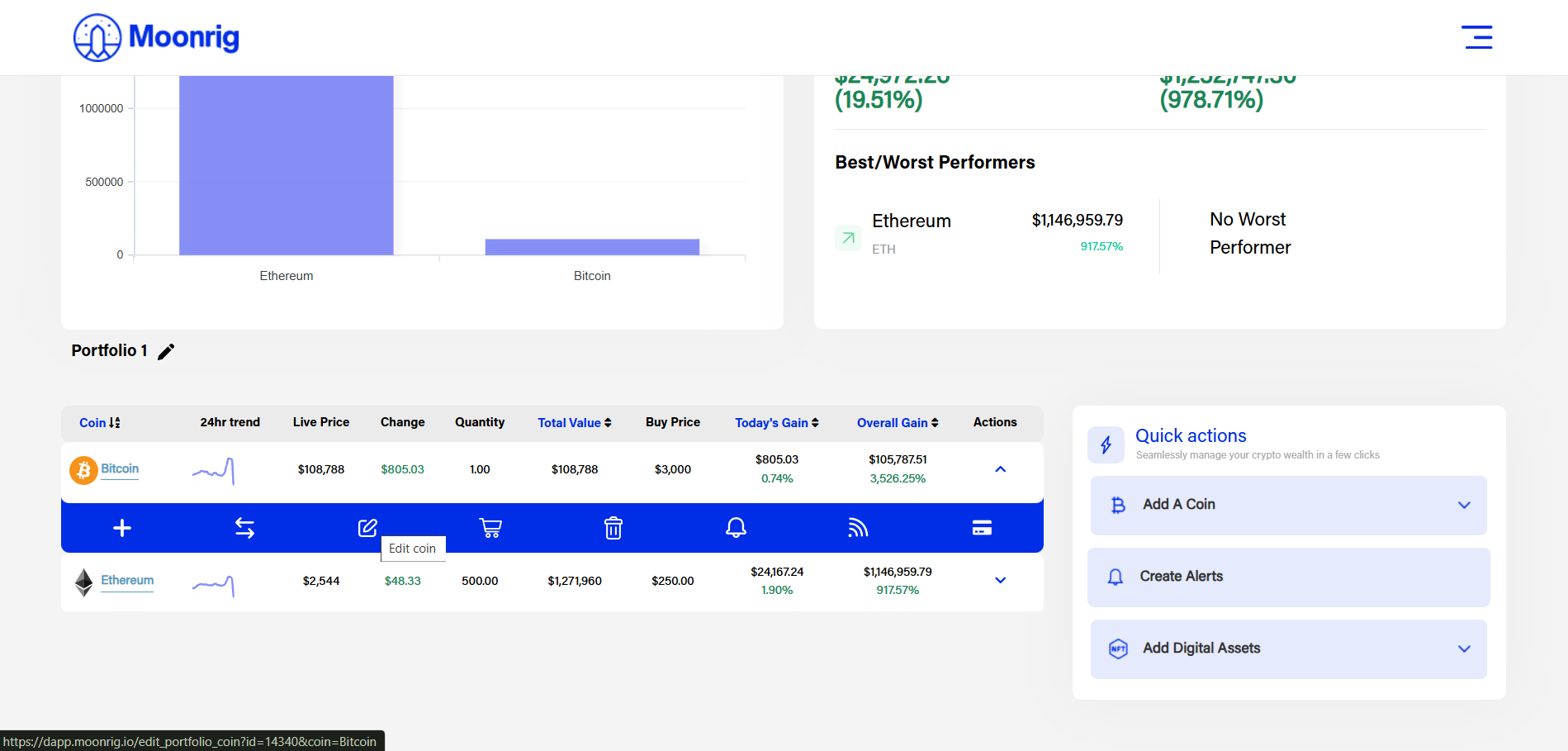 Here you can change/correct the entries for this transaction
  Sell (Selected) Coin Use this section to sell the selected coins purchased earlier
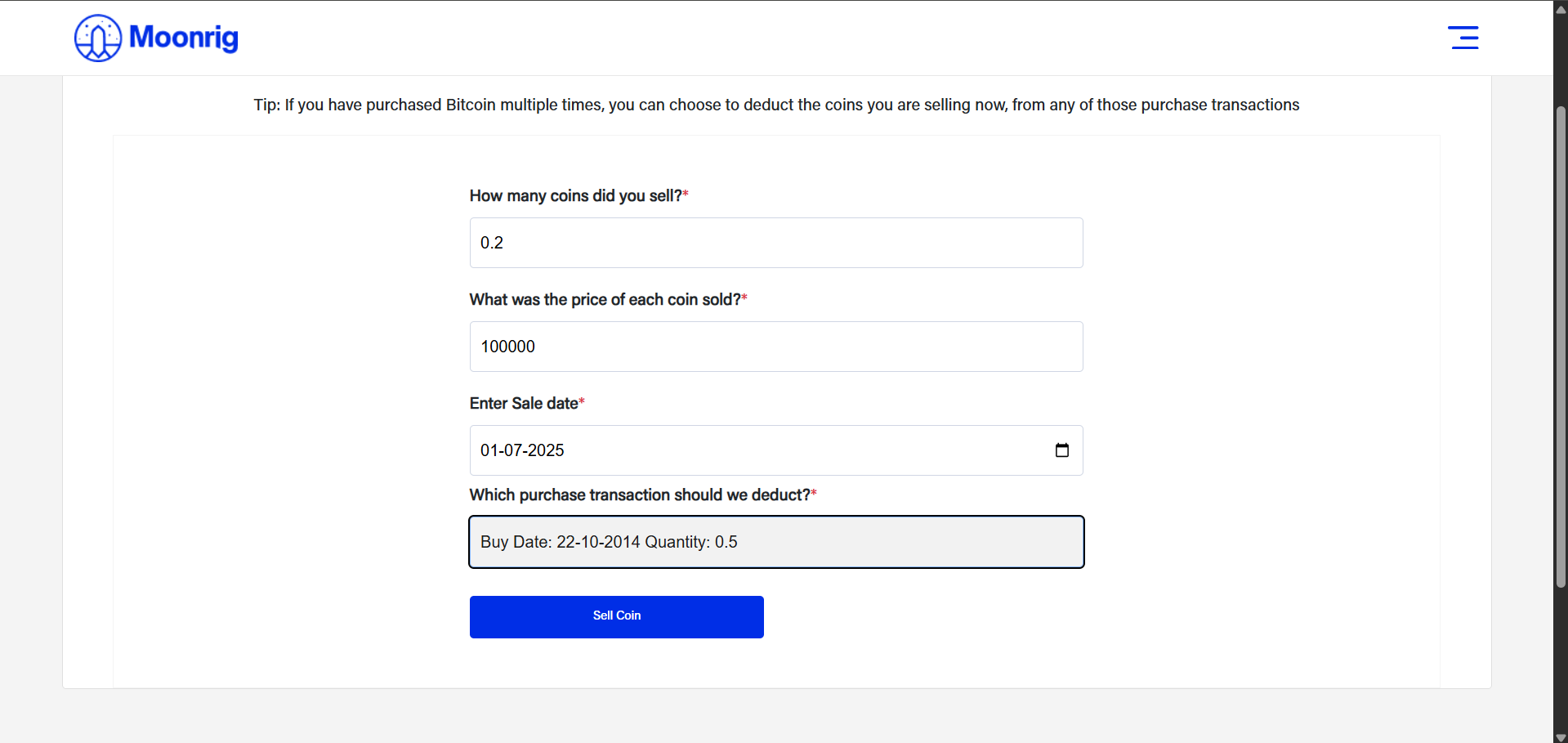
 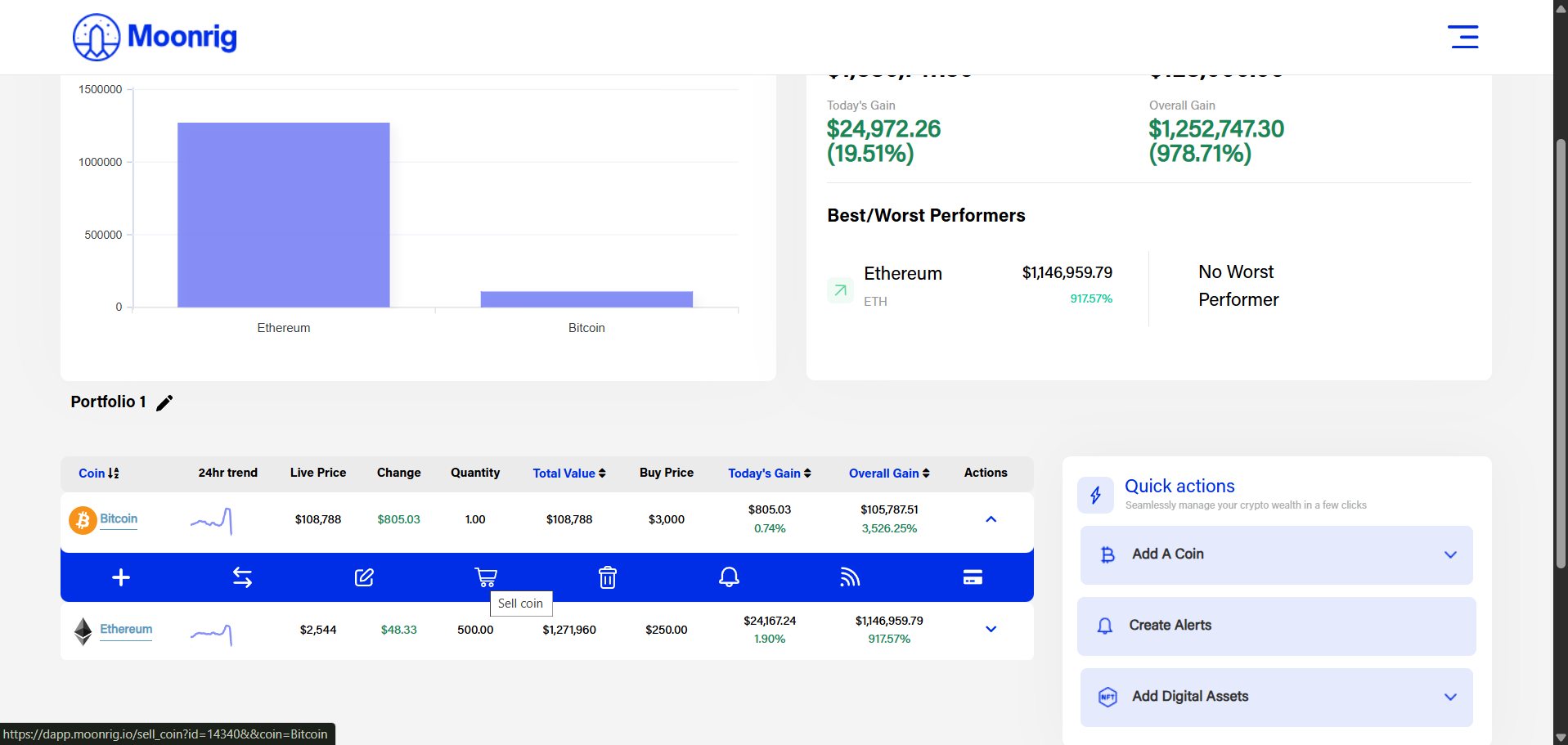 Clicking on the Sell (shopping cart icon) button will open a new page where you can fill the amounts as appropriate. You can also click on the ‘Which purchase transaction should we deduct?*’. A drop-down menu reveals itself in which the list of the various transactions (if any) is/are displayed by ‘Buy Date’. Choose the correct transaction you wish to sell. Click on ‘Sell Coin’.
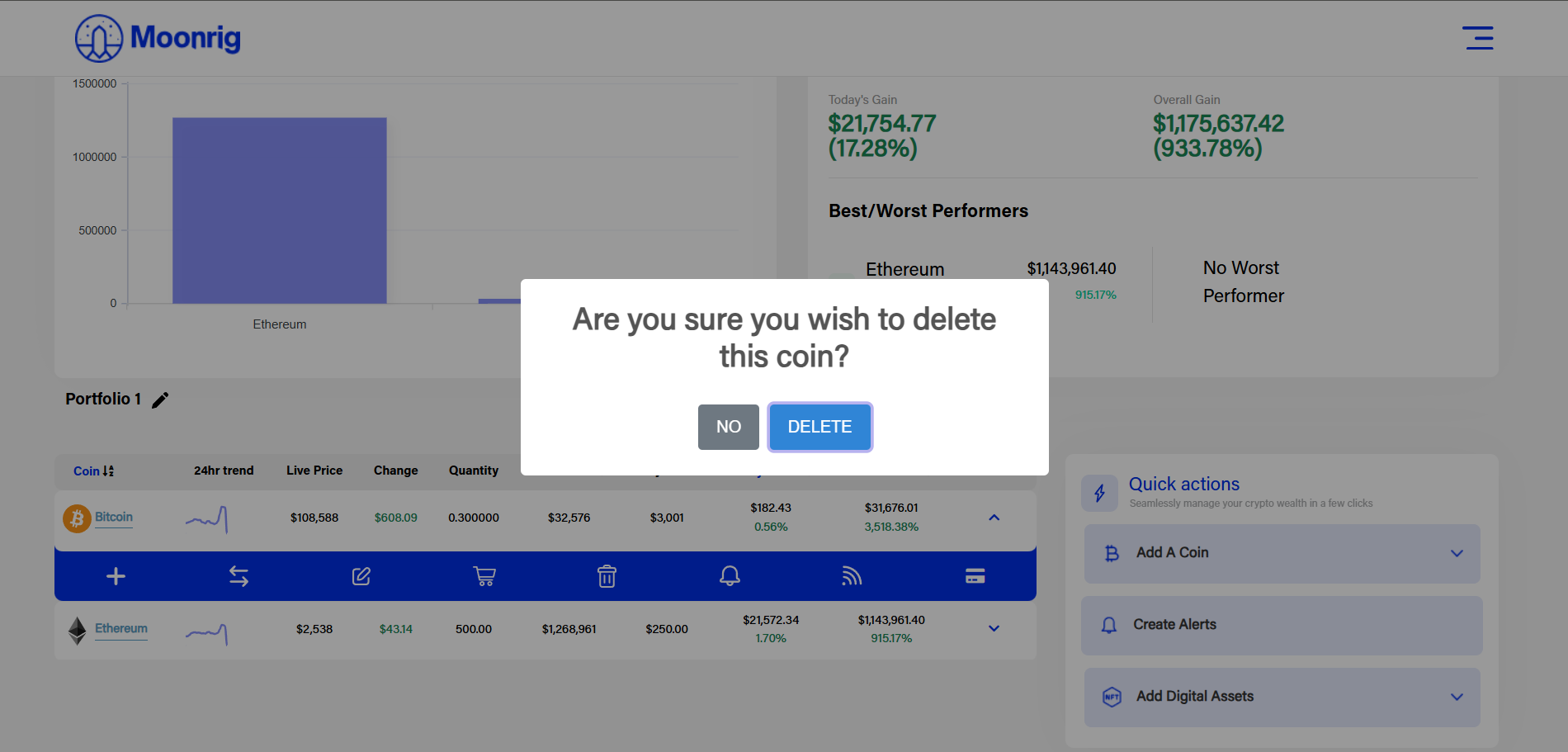
  Delete Coin If you wish to delete a listing of a selected coin purchased earlier, click on this (trash can) icon. A pop-up appears asking you to either ‘Cancel’ or ‘Delete’ the coin. Click ‘Delete’ to complete the transaction or ‘NO’ to cancel the transaction.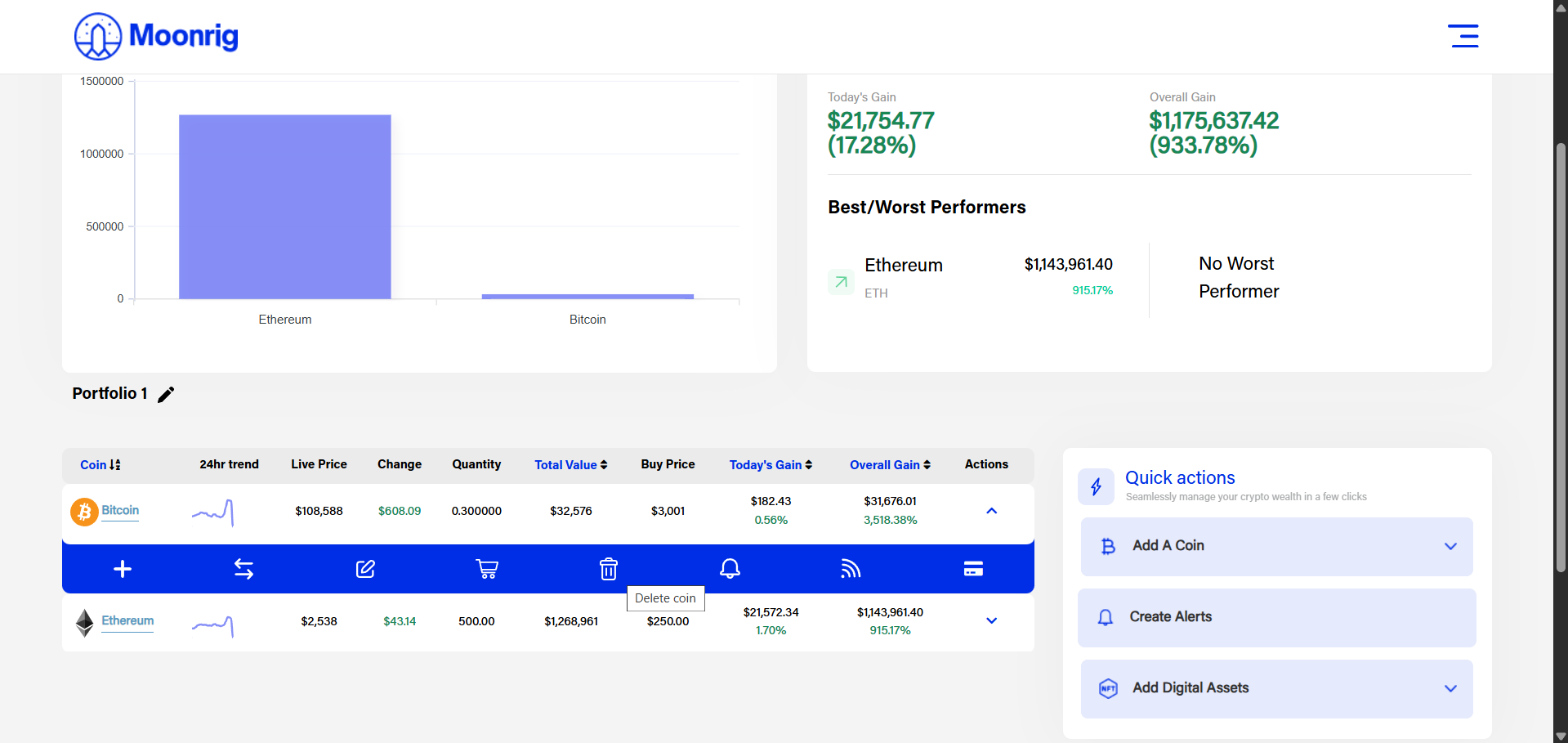
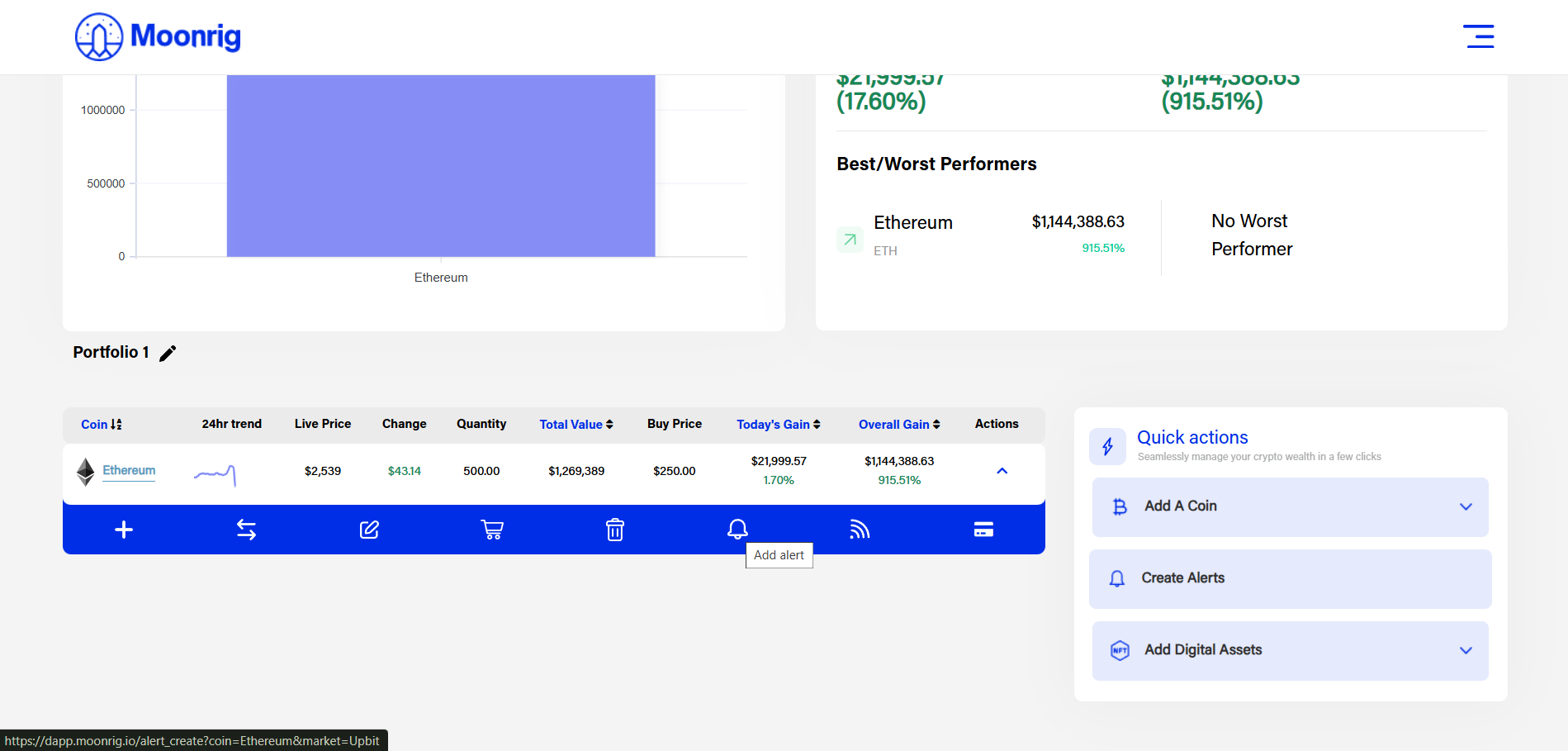
 Add Alert Create an Alert (or alarm) for the selected coin. An alert/alarm is triggered when certain conditions (that you set in this section). To set an alert, click on the Add Alert (bell icon) button.
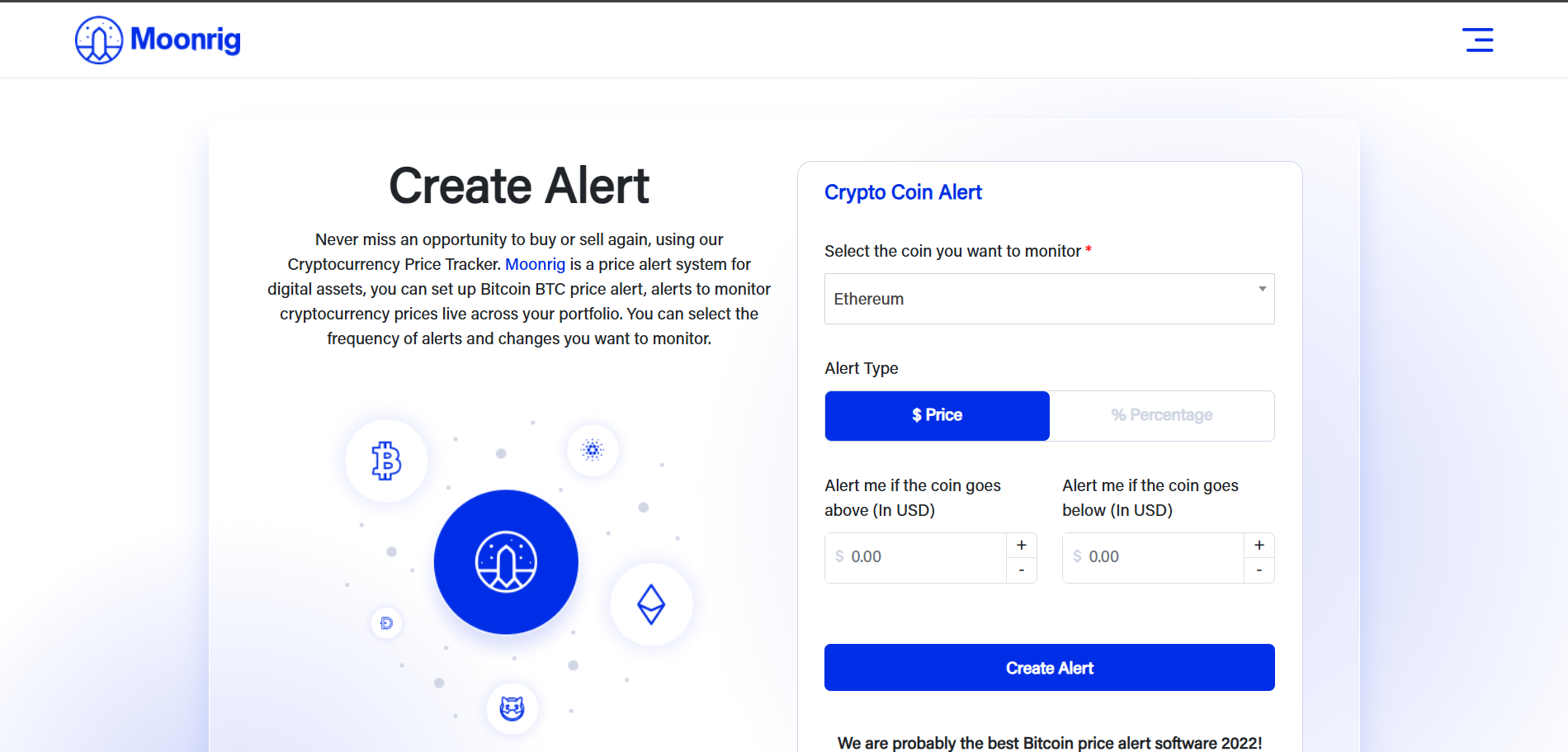
  You can set the trigger to activate if it goes above a certain value (in USD) or below a certain value (in USD)
  This section also allows you to set an alert by Percentage as well. This allows you to set an alert for the coin if it increases/decreases by a certain percentage from the time the alert has been set. Here you can enter a percentage value (without entering the ﹪ symbol) and create an alert.
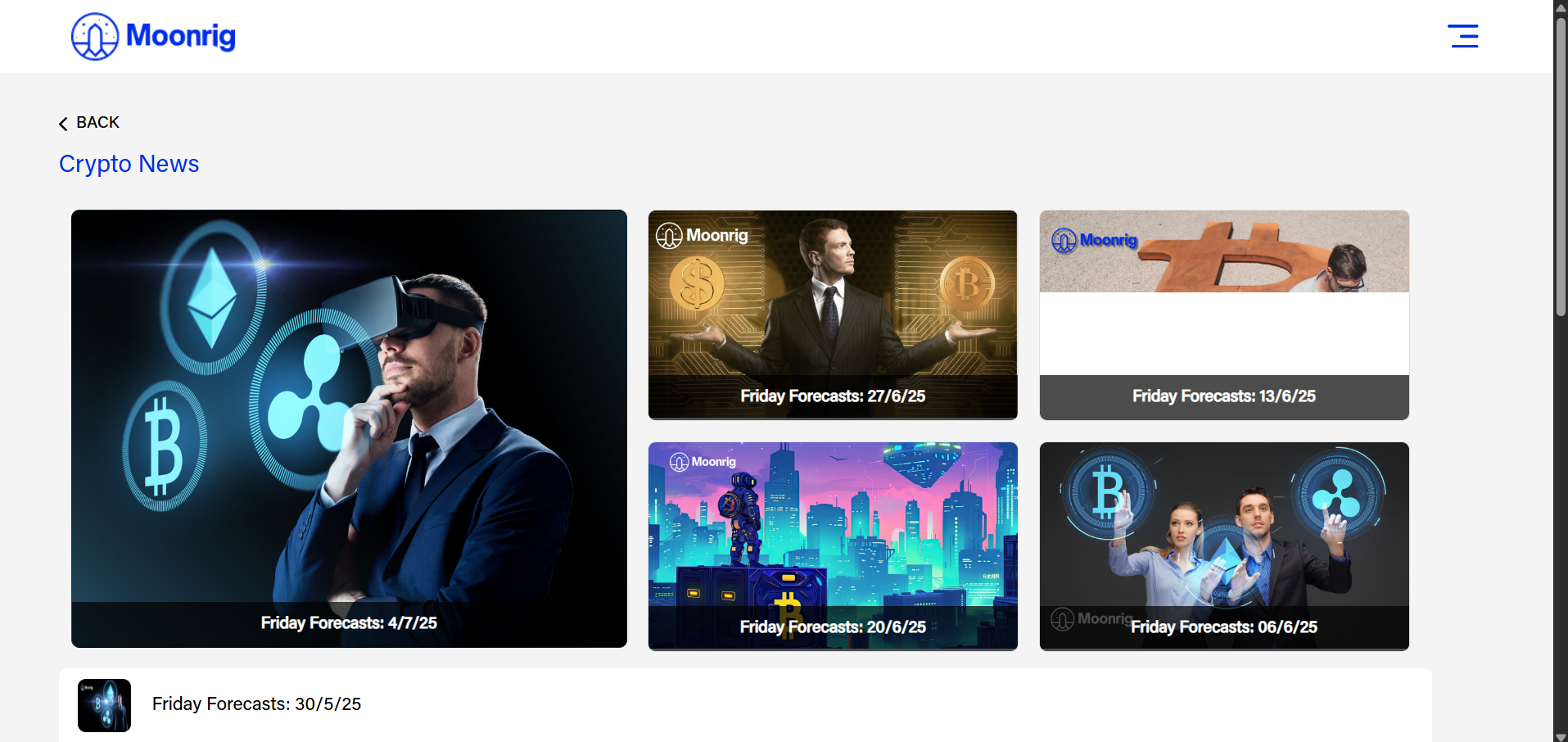
 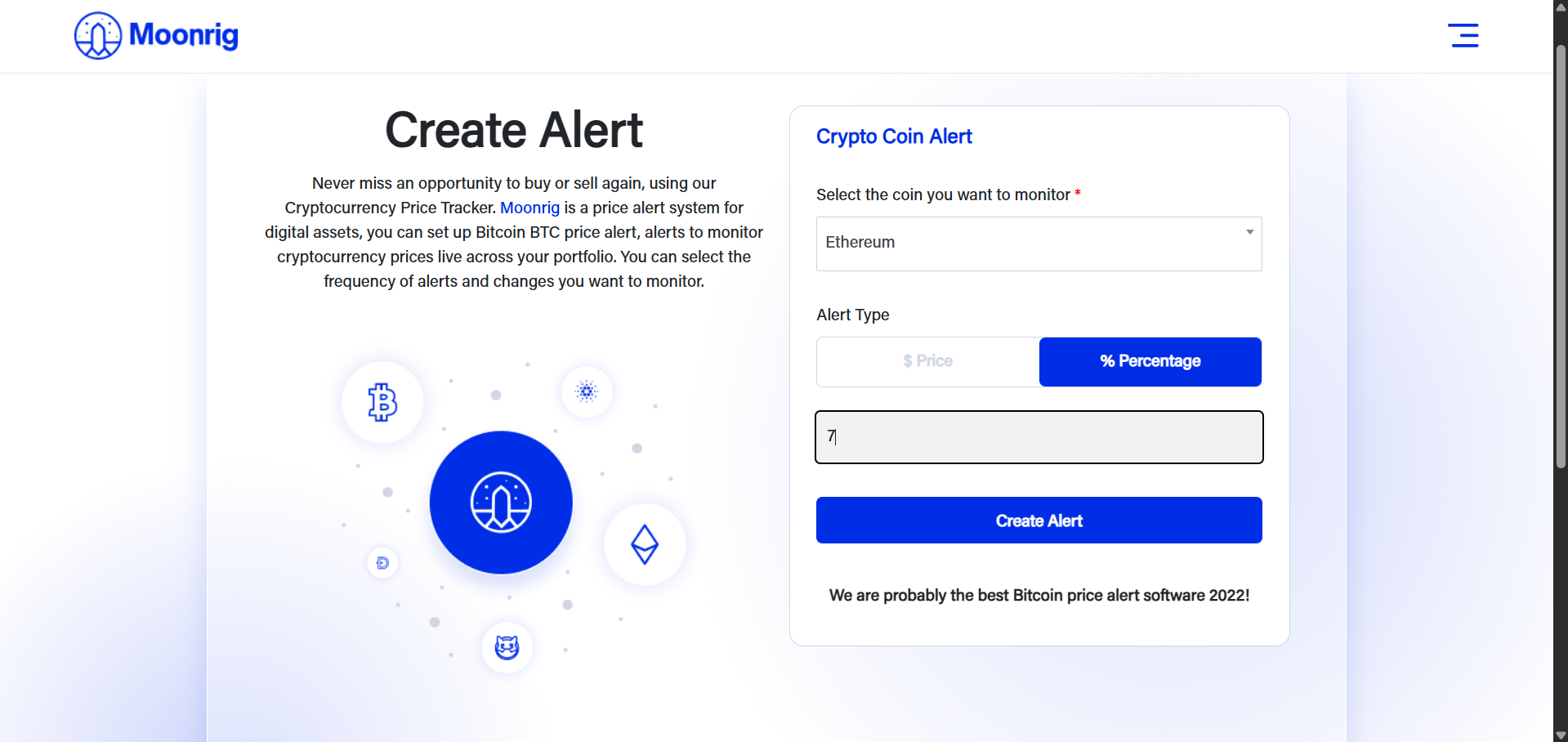 The alert is triggered when the coin increases/decreases by that percentage of the current price value. News Clicking on this button opens up the ‘News’ section of the site. When opened, it displays all the news articles created and posted by Moonrig. To refresh, pull down the screen and release You can also share a particular article by clicking on the share icon.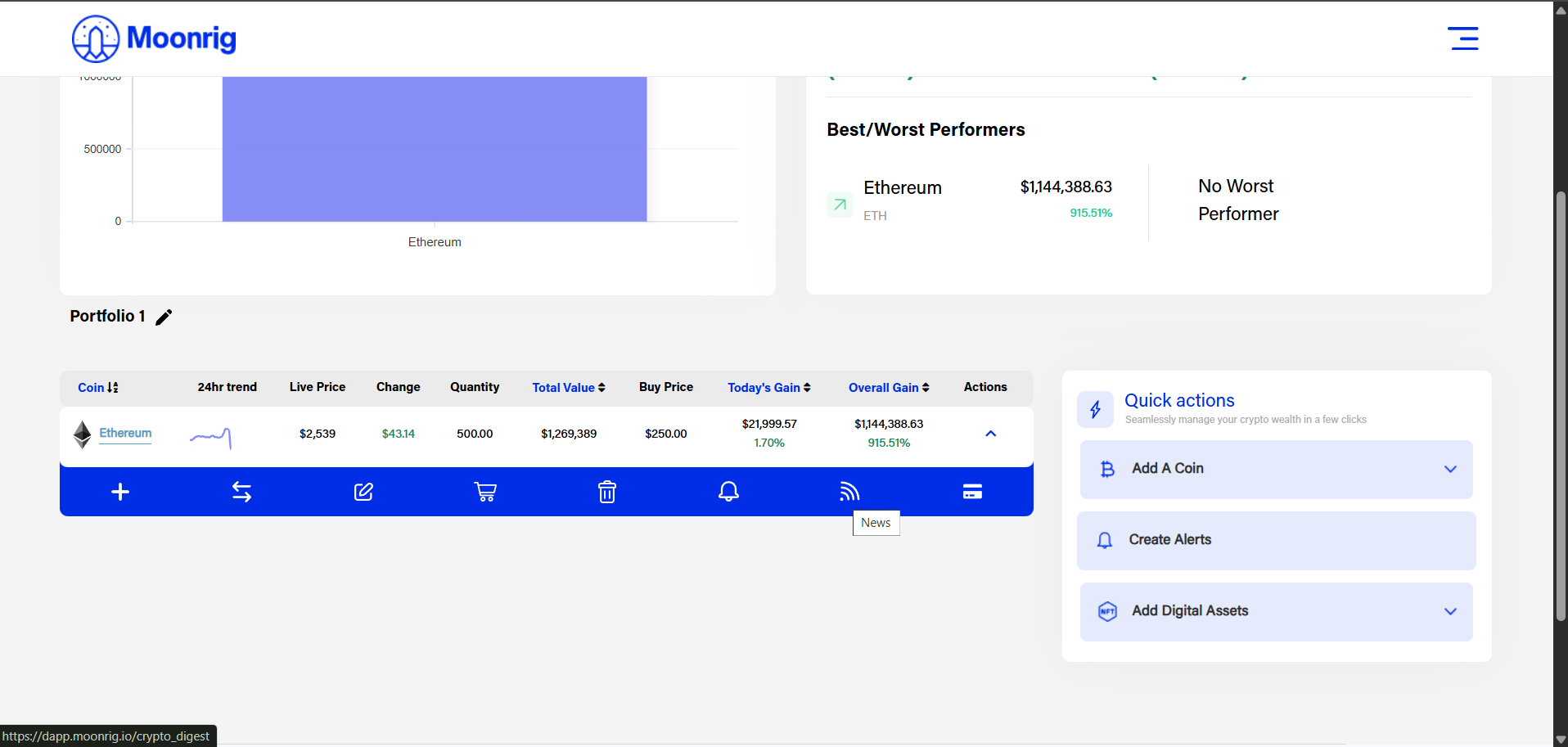
 Buy Coin You can easily import your Binance portfolio into Moonrig by following the steps below using your API key (Premium feature).